Testing in Practice · Part 3
Visual regression testing with Playwright (hands-on): screenshots, baselines, masks and thresholds
ProvaLab team · · 10 min read
A functional test asks "does it work?". Click Remove tip, and the total goes from 550 to 500: pass. It doesn't ask "does it still look right?". So when someone changes a shared stylesheet for a different page, and the tip label on your checkout suddenly wraps onto two lines and the layout shifts, every functional test stays green. A customer sees it in a minute.
Visual regression testing closes that gap. It takes a screenshot of the page, compares it with an approved one from before, and fails when the pixels change. This post builds one with Playwright, then shows the three things that make or break it in real life: the first run, the content that changes every time, and how much difference counts as "different".
Every command and every line of output below was run while writing this post. Along the way we found that the default settings let a real colour change through. The numbers are in Step 5.
What visual regression testing catches
| Catches | Functional tests usually miss it because... |
|---|---|
| Overlapping or wrapping text, shifted layouts | The element is still there and still clickable |
| Wrong colours, missing icons, broken images | Nobody asserts on colour or pixels |
| A shared CSS change leaking into other pages | The test for the other page never runs a check on layout |
| Things off-screen or hidden behind other things | toBeVisible() checks for display, size and visibility, not whether something covers it |
It doesn't replace functional tests. A screenshot of a checkout that charges the wrong amount can look perfect. You want both.
How it works
The loop is always the same, whatever the tool:
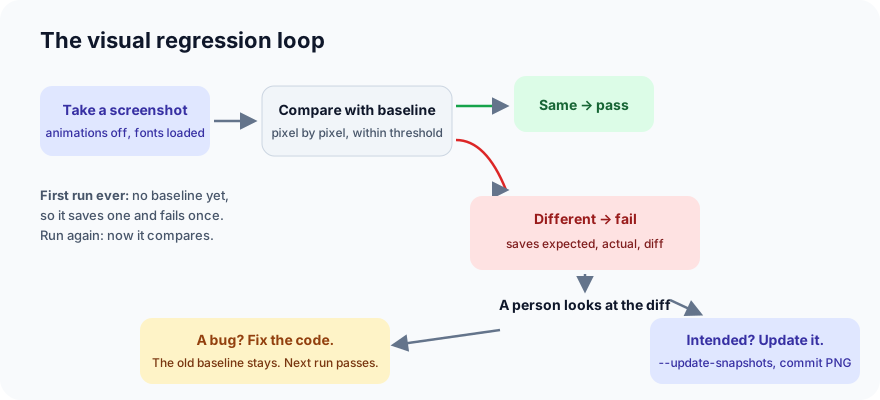
The baseline is the approved screenshot, stored next to the tests and committed to git. The comparison isn't "are the files identical". It's "how many pixels differ, by how much colour", with two dials you control. We'll turn both.
Step 1: Set up (3 minutes)
Playwright's screenshot assertion, toHaveScreenshot, lives in its JavaScript/TypeScript test runner. The Python package we used in earlier posts doesn't have it built in, so this post uses TypeScript. You don't need to know much of it: the tests are a few lines each.
mkdir visual && cd visual
npm init -y
npm install -D @playwright/[email protected]
npx playwright install chromium
We used Node.js 20.19.5 and Playwright 1.64.0 on Linux.
The page under test is the FoodNow checkout from the accessibility post, with a little more design. It uses a shared stylesheet, site/base.css, which every FoodNow page loads:
/* Shared styles for every FoodNow page. */
* { box-sizing: border-box; }
body { font-family: "DejaVu Sans", Verdana, sans-serif; margin: 0; background: #f1f5f9; color: #0f172a; }
button { font: inherit; cursor: pointer; }
The page shows the order, a tip box with a × button to remove the tip, the total, a line with the time of the order, and a Pay button. A short Node server, server.mjs, serves the site/ folder on port 4173. The config starts it before the tests:
// playwright.config.ts
import { defineConfig, devices } from "@playwright/test";

export default defineConfig({
  testDir: "./tests",
  use: { baseURL: "http://localhost:4173" },
  webServer: { command: "node server.mjs", url: "http://localhost:4173/checkout.html", reuseExistingServer: true },
  projects: [{ name: "chromium", use: { ...devices["Desktop Chrome"] } }],
});
Step 2: One functional test, one visual test
// tests/checkout.spec.ts
import { test, expect } from "@playwright/test";

test("removing the tip updates the total", async ({ page }) => {
  await page.goto("/checkout.html");
  await page.getByRole("button", { name: "Remove tip" }).click();
  await expect(page.locator("#total")).toHaveText("500");
  await expect(page.getByRole("button", { name: "Pay 500" })).toBeVisible();
});

test("checkout looks right", async ({ page }) => {
  await page.goto("/checkout.html");
  await expect(page).toHaveScreenshot("checkout.png");
});
The first test is the kind you already write. The second is the whole of a visual test: one line.
Step 3: The first run fails, on purpose
npx playwright test
  ✘  2 [chromium] › tests/checkout.spec.ts:10:5 › checkout looks right (341ms)

    Error: A snapshot doesn't exist at tests/checkout.spec.ts-snapshots/checkout-chromium-linux.png, writing actual.

  1 failed
  1 passed (1.3s)
That's expected. There's nothing to compare with yet, so Playwright saves this screenshot as the baseline and fails, to make sure a person looks at it before it's trusted. Open the PNG and check it's actually right. Everything after this is measured against it.
Note the file name: checkout-chromium-linux.png. The browser and the operating system are part of it, because fonts and anti-aliasing render slightly differently on Linux, macOS and Windows. More on that in the mistakes section.
Step 4: The second run fails too. Why?
Run it again, change nothing:
  ✓  1 [chromium] › tests/checkout.spec.ts:3:5 › removing the tip updates the total (149ms)
  ✘  2 [chromium] › tests/checkout.spec.ts:10:5 › checkout looks right (568ms)

    Error: expect(page).toHaveScreenshot(expected) failed

      15 pixels (ratio 0.01 of all image pixels) are different.

    Call log:
      - taking page screenshot
        - disabled all CSS animations
      - waiting for fonts to load...
      - fonts loaded
      - 15 pixels (ratio 0.01 of all image pixels) are different.
      - waiting 100ms before taking screenshot
      - taking page screenshot
      - captured a stable screenshot
      - 15 pixels (ratio 0.01 of all image pixels) are different.
Fifteen pixels. The diff image Playwright saved in test-results/ shows them in red, on one character: the seconds in "Ordered at 21:37:40". The page prints the time of the order, and the second ticked over between the two runs.
This is the number one cause of flaky visual tests: content that changes on every run. Times, dates, random ids, ads, live prices, a "3 people are looking at this" counter. The call log also shows Playwright handling the other usual suspects for you: it disables CSS animations, waits for web fonts, and takes screenshots until two in a row match before comparing.
The fix is to mask the changing part. Playwright paints a solid box over it in both screenshots, so it's never compared:
test("checkout looks right", async ({ page }) => {
  await page.goto("/checkout.html");
  await expect(page).toHaveScreenshot("checkout.png", {
    mask: [page.getByTestId("eta")], // the order time changes every run
  });
});
The old baseline has the unmasked time in it, so replace it once, deliberately:
npx playwright test --update-snapshots
tests/checkout.spec.ts-snapshots/checkout-chromium-linux.png is re-generated, writing actual.
  2 passed (1.4s)
Three more runs, a few seconds apart: 2 passed (947ms), 2 passed (966ms), 2 passed (949ms). Stable.
Masking isn't the only option. You can also freeze the input, with a fixed clock (page.clock) or fixed test data, so the page always shows the same thing. That's better when the changing part matters, for example a price you want to see. Mask what you don't care about. Freeze what you do.
Step 5: The regression
Now the realistic part. A developer working on a new menu page wants bigger buttons there, so they're easy to tap. They make a one-line change to the shared stylesheet:
-button { font: inherit; cursor: pointer; }
+button { font: inherit; cursor: pointer; min-width: 120px; } /* big enough to tap on the new menu page */
Run the tests:
  ✓  1 [chromium] › tests/checkout.spec.ts:3:5 › removing the tip updates the total (147ms)
  ✘  2 [chromium] › tests/checkout.spec.ts:10:5 › checkout looks right (563ms)

    Error: expect(page).toHaveScreenshot(expected) failed

      3439 pixels (ratio 0.01 of all image pixels) are different.

  1 failed
  1 passed (1.3s)
The functional test passed: the × button still exists, still has its name, and still removes the tip. The visual test failed, and here are the three images it saved, cropped to the card:
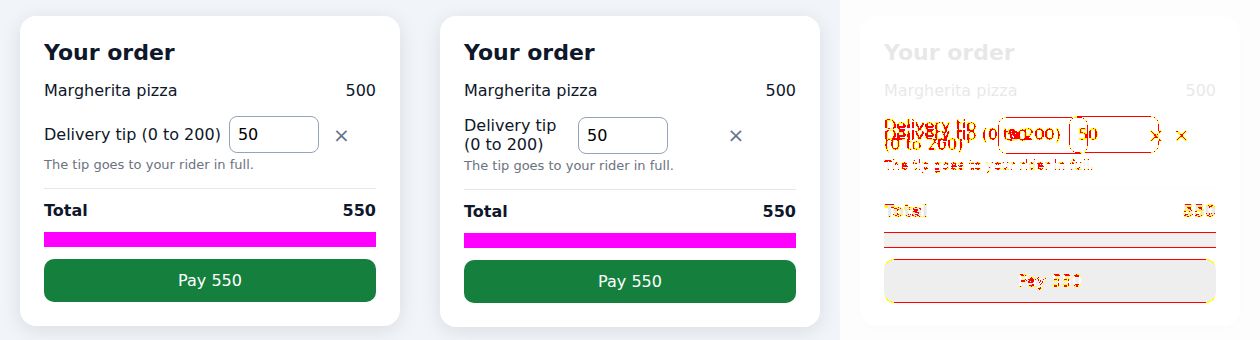
Left: the baseline. Middle: after the change. Right: the diff, with changed pixels in red. The pink bar is the masked order time.
The × button grew to 120 pixels, the row ran out of room, and the tip label wrapped onto two lines, pushing everything under it down. Nothing is "broken" in the functional sense. It just looks broken. This is exactly the bug visual tests exist for.
The fix is to keep the rule where it belongs:
/* Only the menu page wants big buttons. */
.menu button { min-width: 120px; }
2 passed. The baseline didn't change, because the page is back to how it was approved.
Step 6: How different is "different"? We tested it
Two settings decide what counts as a change:
threshold: how different a single pixel's colour must be to count as changed, from 0 (any difference) to 1 (anything goes). The default is 0.2.maxDiffPixelsormaxDiffPixelRatio: how many changed pixels you'll tolerate before failing. The default is zero: one changed pixel fails the test.
We changed the Pay button from #15803d to #166534, a darker green. Anyone looking at the two side by side would see it. Here's what each threshold made of it:
threshold |
Result |
|---|---|
| 0.2 (default) | passed: the change was ignored |
| 0.1 | passed |
| 0.05 | failed: 13,694 pixels are different |
So the default lets a real colour change through. That's on purpose: a slightly loose threshold stops tests failing on tiny anti-aliasing differences between machines. But if colour matters to you (brand colours, or contrast you fixed for accessibility), lower it for that test, or test colour directly with toHaveCSS("background-color", ...).
Step 7: When the change is intended
Designs change on purpose too. The designer asks for a pill-shaped Pay button:
-.pay { ... border-radius: 10px; }
+.pay { ... border-radius: 999px; }
      212 pixels (ratio 0.01 of all image pixels) are different.
  1 failed
  1 passed (1.3s)
The test fails, correctly: something changed. Look at the diff, confirm it's the change you wanted and nothing else, then accept it:
npx playwright test --update-snapshots
tests/checkout.spec.ts-snapshots/checkout-chromium-linux.png is re-generated, writing actual.
  2 passed (1.3s)
Commit the new PNG with the CSS change. The reviewer then sees the before and after images in the pull request, next to the code that caused them. GitHub and GitLab both show image diffs. A visual change that nobody looked at is the one thing this whole process exists to prevent.
Common mistakes
- Updating baselines without looking.
--update-snapshotsaccepts every difference, including the bug you were meant to catch. Run it only after checking each diff. - Making baselines on a laptop and comparing in CI. Fonts and rendering differ between operating systems, so a Mac baseline fails on a Linux CI runner. Generate and compare baselines in the same environment, for example Playwright's official Docker image for your version, both locally and in CI.
- Screenshotting whole pages full of moving parts. Mask what changes, freeze the clock, use fixed test data, or screenshot one element:
await expect(page.locator(".card")).toHaveScreenshot(). Smaller screenshots fail for clearer reasons. - Raising the threshold until it passes. If a test is flaky, find the moving part. A threshold loose enough to hide flakiness also hides real changes, as Step 6 shows.
- Hundreds of screenshots on day one. Start with your most important pages and states: checkout, sign-up, the error state of the main form. Every baseline is something a person has to review when the design changes.
Built-in, or a service?
Playwright's built-in screenshots, as here, are free and live in your repo. Hosted services such as Percy, Chromatic and Applitools add a web page for reviewing and approving diffs, history, many browsers at once, and smarter comparisons that ignore some rendering noise. Teams often start built-in and move to a service when reviewing PNGs in pull requests stops scaling.
What's next
In Part 4 of Testing in Practice we look at testing database changes: what to check when the code writes to a database, and a hands-on run with SQL and pytest.
ProvaLab's QA Infrastructure runs Playwright tests on real browsers in the cloud, the same environment on every run, which is what visual baselines need, and records every session so a failed screenshot comes with a video of what happened. See it in the two-minute product tour.
See ProvaLab working on a real app
Your coding agent runs the tests, reads the failures and fixes them.