Testing in Practice · Part 6
Mobile app testing with Appium and pytest (hands-on): rotation, crashes and the button you can't reach
ProvaLab team · · 13 min read
A web page lives in one browser window. A phone app lives in a much rougher place. The user turns the phone sideways halfway through checkout. The keyboard covers half the screen. A call comes in. The screen is small, and what fits in portrait doesn't fit in landscape. Each of these can break an app that works perfectly when you tap through it on your desk.
This post tests a small Android app for FoodNow, our food delivery example, with Appium and pytest on an Android emulator. Two bugs are planted in it. While running the tests we found a third that we didn't plant, and two traps in the tooling that make tests lie. Every command and line of output below was run while writing this post.
What's different about testing a mobile app
| Mobile-only problem | What goes wrong |
|---|---|
| Rotation | Android destroys the screen and builds it again. Anything the app didn't save is gone. |
| Small screens, two orientations | A button that fits in portrait can end up below the edge in landscape. |
| Crashes | There's no error page. The app just closes, and the user sees "keeps stopping". |
| Interruptions | Calls, notifications, the app going to the background and coming back. |
| Gestures and the keyboard | Swipes, the on-screen keyboard, system gestures that take over the edges of the screen. |
| Many devices | Different Android versions, screen sizes and makers' changes. |
This post covers the first four. The tools are the same for the rest.
How Appium works
Appium is a server that drives phone apps the way Selenium and WebDriver drive browsers. Your test sends commands over HTTP. Appium's UiAutomator2 driver installs your app and a small helper app on the phone, and the helper app taps, types and reads the screen.
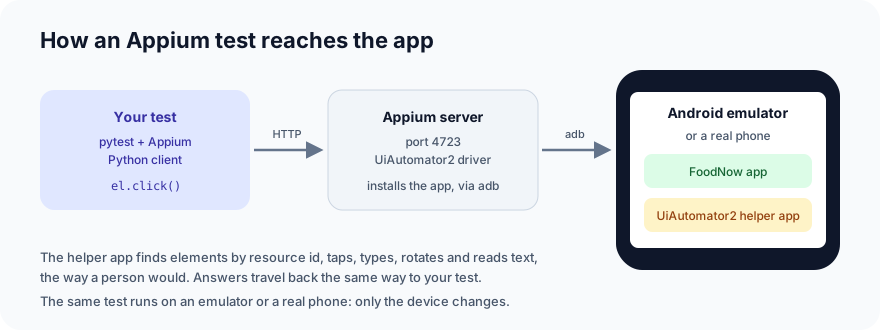
The same test runs on an emulator or a real phone. Only the device changes.
Step 1: Set up
You need an Android emulator, an Appium server with the UiAutomator2 driver, and the Python client.
On Linux with KVM, the quickest way to get the first two is one Docker container that has both. We used this:
docker run -d --name foodnow-emu --device /dev/kvm \
  -p 4723:4723 -p 6080:6080 -v "$PWD":/apps:ro \
  -e EMULATOR_DEVICE="Samsung Galaxy S10" -e WEB_VNC=true -e APPIUM=true \
  budtmo/docker-android:emulator_14.0
It starts Android 14 with Appium on port 4723, and shows the phone's screen in your browser at http://localhost:6080. It needs a few minutes to boot the first time. The -v line makes the current folder visible inside the container as /apps, which is where Appium will look for the app.
On a Mac or Windows, use Android Studio's emulator instead, and install Appium yourself:
npm install -g appium
appium driver install uiautomator2
appium
Then the Python side:
pip install Appium-Python-Client==6.1.5 pytest==9.2.0
We used Appium 3.9.0 with the UiAutomator2 driver 8.7.3 (both inside the container), an Android 14 emulator (API 34), Python 3.11, pytest 9.2.0 and Appium-Python-Client 6.1.5, on Linux.
Step 2: The app
The app is one checkout screen: two paneer wraps for 500, a box for the delivery tip, Add tip and Remove tip buttons, the total, and Pay. Every control has an id in the layout, such as android:id="@+id/total", which Appium sees as the resource id com.example.foodnow:id/total. Ids are the most reliable way to find elements, like data-testid on the web.
Here is the code behind the screen, with the two planted bugs in it:
public class CheckoutActivity extends Activity {
    private static final int SUBTOTAL = 500;
    private int tip = 0;
    private TextView total;

    @Override
    protected void onCreate(Bundle savedInstanceState) {
        super.onCreate(savedInstanceState);
        setContentView(R.layout.checkout);
        EditText tipField = findViewById(R.id.tip);
        TextView status = findViewById(R.id.status);
        total = findViewById(R.id.total);
        showTotal();

        findViewById(R.id.add_tip).setOnClickListener(v -> {
            String text = tipField.getText().toString();
            int value = text.isEmpty() ? 0 : Integer.parseInt(text);
            if (value > 200) {
                status.setText("Tip must be 0 to 200");
                return;
            }
            tip = value;
            status.setText("");
            showTotal();
        });
        findViewById(R.id.remove_tip).setOnClickListener(v -> {
            tip = 0;
            tipField.setText("");
            showTotal();
        });
        findViewById(R.id.pay).setOnClickListener(v ->
                status.setText("Order placed: " + (SUBTOTAL + tip)));
    }

    private void showTotal() {
        total.setText("Total: " + (SUBTOTAL + tip));
    }
}
We built it into foodnow.apk with the Android SDK's own tools. In a real project, Android Studio or ./gradlew assembleDebug builds the APK for you.
Step 3: A fixture that starts the app, and collects evidence
tests/conftest.py opens an Appium session for each test, with the app freshly installed and its data cleared. It also does two things most examples leave out. Both turned out to matter.
import os
import pathlib

import pytest
from appium import webdriver
from appium.options.android import UiAutomator2Options

APP = os.environ.get("APP", str(pathlib.Path(__file__).parent.parent / "foodnow.apk"))
APPIUM_URL = os.environ.get("APPIUM_URL", "http://127.0.0.1:4723")


@pytest.hookimpl(wrapper=True)
def pytest_runtest_makereport(item, call):
    """Remember whether the test failed, so the fixture can collect evidence."""
    report = yield
    setattr(item, f"rep_{report.when}", report)
    return report


@pytest.fixture
def driver(request):
    options = UiAutomator2Options()
    options.app = APP
    options.app_package = "com.example.foodnow"
    options.app_activity = ".CheckoutActivity"
    options.no_reset = False  # fresh app data for every test
    options.set_capability("appium:enforceAppInstall", True)  # always install the APK you just built
    driver = webdriver.Remote(APPIUM_URL, options=options)
    driver.implicitly_wait(5)
    driver.get_log("logcat")  # skip old log lines: this returns, and clears, what's there so far
    yield driver
    if getattr(request.node, "rep_call", None) and request.node.rep_call.failed:
        # A crash on a phone shows up only as "element not found". Print the real cause.
        crash = [e["message"] for e in driver.get_log("logcat") if " E AndroidRuntime" in e["message"]]
        print("\n".join(crash[:4]) or "no crash in logcat")
        driver.save_screenshot(f"{request.node.name}.png")
    driver.quit()
When a test fails, it prints the crash lines from the phone's log (logcat) and saves a screenshot. Step 5 shows why.
Step 4: The tests
The everyday checks, in tests/test_checkout.py. The last one is a boundary test: a tip far too long to be a real number.
from appium.webdriver.common.appiumby import AppiumBy

PKG = "com.example.foodnow:id/"


def el(driver, name):
    return driver.find_element(AppiumBy.ID, PKG + name)


def add_tip(driver, amount):
    el(driver, "tip").send_keys(str(amount))
    el(driver, "add_tip").click()


def test_tip_is_added_to_the_total(driver):
    add_tip(driver, 50)
    assert el(driver, "total").text == "Total: 550"


def test_remove_tip(driver):
    add_tip(driver, 50)
    el(driver, "remove_tip").click()
    assert el(driver, "total").text == "Total: 500"


def test_tip_over_200_is_refused(driver):
    add_tip(driver, 250)
    assert el(driver, "status").text == "Tip must be 0 to 200"
    assert el(driver, "total").text == "Total: 500"


def test_a_huge_tip_is_refused_not_a_crash(driver):
    add_tip(driver, 99999999999)
    assert el(driver, "status").text == "Tip must be 0 to 200"
And one test that only makes sense on a phone, in tests/test_mobile_only.py: add a tip, turn the phone sideways, then pay.
from appium.webdriver.common.appiumby import AppiumBy
from selenium.common.exceptions import StaleElementReferenceException
from selenium.webdriver.support.ui import WebDriverWait

from test_checkout import PKG, add_tip, el


def text_of(driver, name):
    """Read a text, waiting out the moment Android rebuilds the screen."""
    return WebDriverWait(driver, 5, ignored_exceptions=[StaleElementReferenceException]).until(
        lambda d: el(d, name).text
    )


def scroll_to(driver, name):
    """Scroll until the element is on screen, like a person would. Fails if nothing scrolls.

    The dead zone keeps the swipe away from the screen edges. Without it, the swipe starts
    at the bottom edge, and Android's gesture navigation takes it as "go to recent apps".
    """
    driver.find_element(
        AppiumBy.ANDROID_UIAUTOMATOR,
        "new UiScrollable(new UiSelector().scrollable(true)).setSwipeDeadZonePercentage(0.25)"
        f'.scrollIntoView(new UiSelector().resourceId("{PKG}{name}"))',
    )
    return el(driver, name)


def test_tip_survives_rotating_the_phone(driver):
    add_tip(driver, 50)

    driver.orientation = "LANDSCAPE"

    assert text_of(driver, "tip") == "50"
    assert text_of(driver, "total") == "Total: 550"
    scroll_to(driver, "pay").click()
    assert text_of(driver, "status") == "Order placed: 550"
text_of is there because rotating rebuilds the screen. Our first version read the text straight away, and failed with StaleElementReferenceException: The element 'By.id: com.example.foodnow:id/tip' does not exist in DOM anymore: Appium had found the old screen just before Android threw it away. The two notes in scroll_to come from Step 7.
Step 5: The run
The Appium server runs inside the container, so we tell the tests where the app is from the container's point of view:
$ APP=/apps/foodnow.apk python -m pytest tests --tb=short
============================= test session starts ==============================
platform linux -- Python 3.11.17, pytest-9.2.0, pluggy-1.7.0
rootdir: ~/foodnow-mobile
collected 5 items

tests/test_checkout.py ...F                                              [ 80%]
tests/test_mobile_only.py F                                              [100%]

=================================== FAILURES ===================================
____________________ test_a_huge_tip_is_refused_not_a_crash ____________________
tests/test_checkout.py:34: in test_a_huge_tip_is_refused_not_a_crash
    assert el(driver, "status").text == "Tip must be 0 to 200"
           ^^^^^^^^^^^^^^^^^^^^
tests/test_checkout.py:7: in el
    return driver.find_element(AppiumBy.ID, PKG + name)
           ^^^^^^^^^^^^^^^^^^^^^^^^^^^^^^^^^^^^^^^^^^^^
...
E   selenium.common.exceptions.NoSuchElementException: Message: An element could not be located on the page using the given search parameters.
...
--------------------------- Captured stdout teardown ---------------------------
11-11 07:31:31.853 24324 24324 E AndroidRuntime: FATAL EXCEPTION: main
11-11 07:31:31.853 24324 24324 E AndroidRuntime: Process: com.example.foodnow, PID: 24324
11-11 07:31:31.853 24324 24324 E AndroidRuntime: java.lang.NumberFormatException: For input string: "99999999999"
11-11 07:31:31.853 24324 24324 E AndroidRuntime: 	at java.lang.Integer.parseInt(Integer.java:797)
_____________________ test_tip_survives_rotating_the_phone _____________________
tests/test_mobile_only.py:35: in test_tip_survives_rotating_the_phone
    assert text_of(driver, "total") == "Total: 550"
E   AssertionError: assert 'Total: 500' == 'Total: 550'
E
E     - Total: 550
E     ?        -
E     + Total: 500
E     ?          +
--------------------------- Captured stdout teardown ---------------------------
no crash in logcat
=========================== short test summary info ============================
FAILED tests/test_checkout.py::test_a_huge_tip_is_refused_not_a_crash - selen...
FAILED tests/test_mobile_only.py::test_tip_survives_rotating_the_phone - Asse...
========================= 2 failed, 3 passed in 45.07s =========================
(We cut the lines from inside Selenium and the Appium server, marked ....)
Bug 1: the app crashed
The test's own error says only "element not found". On a phone, that's what a crash looks like from the outside: the app is gone, so every element is gone. Without the crash lines from logcat, you'd be looking for a wrong locator. The real cause is in the teardown output: NumberFormatException: For input string: "99999999999".
The tip box is set to inputType="number", which shows a number keyboard but doesn't limit the length. Integer.parseInt can't hold a number larger than 2,147,483,647, so it throws, nothing catches it, and Android closes the app. The screenshot the fixture saved:
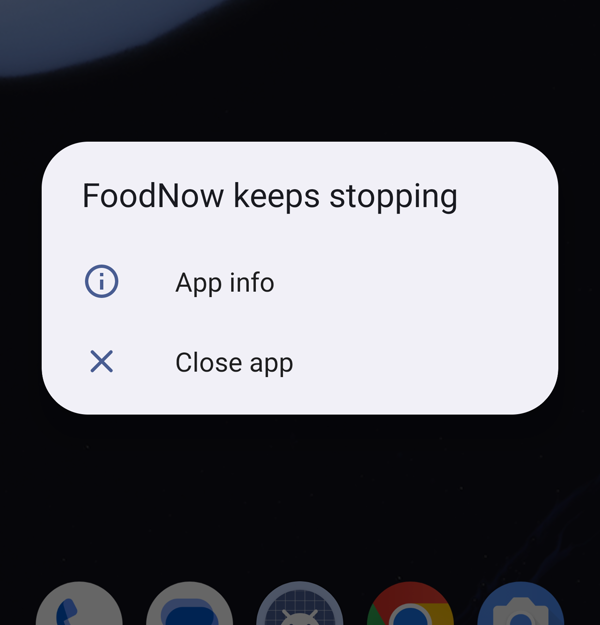
The three everyday tests passed. Only the boundary test, a value at the extreme, found this. That's the same lesson as boundary value analysis anywhere, with a harsher result on a phone.
Bug 2: the tip disappeared when the phone turned
After rotating, the tip box still says 50, but the total says 500. If the customer taps Pay now, they pay 500 and the courier's tip is gone, while the screen still shows the 50 they typed.
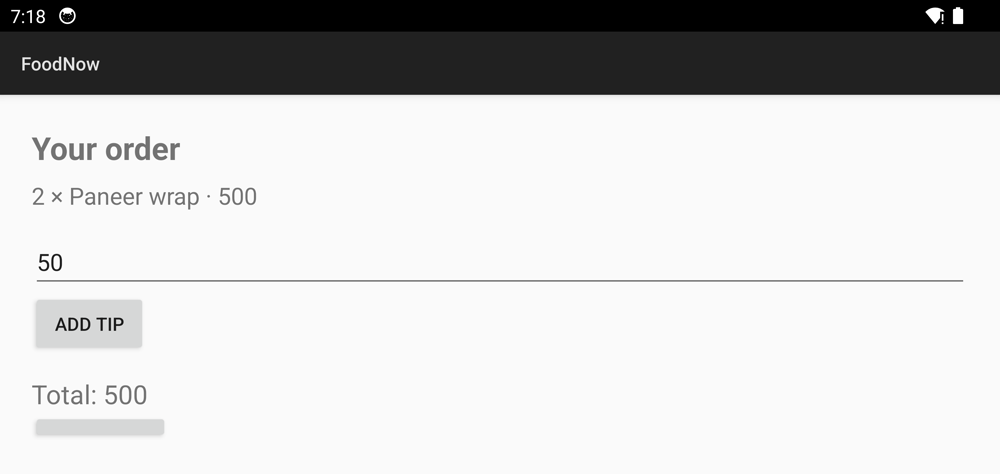
When the phone rotates, Android destroys the screen (the Activity) and creates it again. Android saves the text of an EditText that has an id for you, so the tip box comes back with 50 in it. The tip variable in our code isn't saved, so it starts again at 0, and showTotal() shows 500. The two halves of the screen now disagree.
You can't find this by testing in one orientation, and a tester tapping through on a desk rarely turns the phone at exactly the wrong moment.
Step 6: Fix both
Save the tip when Android is about to destroy the screen, bring it back when it rebuilds it, and treat a number too long to read as too big:
     protected void onCreate(Bundle savedInstanceState) {
         super.onCreate(savedInstanceState);
         setContentView(R.layout.checkout);
+        if (savedInstanceState != null) {
+            tip = savedInstanceState.getInt("tip");  // the screen was rebuilt: bring the tip back
+        }
         EditText tipField = findViewById(R.id.tip);
@@
         findViewById(R.id.add_tip).setOnClickListener(v -> {
             String text = tipField.getText().toString();
-            int value = text.isEmpty() ? 0 : Integer.parseInt(text);
+            int value;
+            try {
+                value = text.isEmpty() ? 0 : Integer.parseInt(text);
+            } catch (NumberFormatException e) {
+                value = Integer.MAX_VALUE;  // too long to be a number: treat it as too big
+            }
             if (value > 200) {
@@
+    @Override
+    protected void onSaveInstanceState(Bundle outState) {
+        super.onSaveInstanceState(outState);
+        outState.putInt("tip", tip);
+    }
Trap 1: the fix that never reached the phone
We rebuilt the app and ran the tests again. Same two failures. The Appium server's log had the reason:
[ADB] The version name of the installed 'com.example.foodnow' is greater or equal to the application version name ('1.0.0' >= '1.0.0')
[ADB] There is no need to install/upgrade '/apps/foodnow.apk'
Appium saw an app with the same version already on the phone and skipped installing the new build. We were testing the old code. This is why the fixture in Step 3 sets enforceAppInstall. Without it, bump the version number on every build, or uninstall the app before the run.
With the new build actually installed:
tests/test_checkout.py ....                                              [ 80%]
tests/test_mobile_only.py F                                              [100%]
...
tests/test_mobile_only.py:36: in test_tip_survives_rotating_the_phone
    scroll_to(driver, "pay").click()
tests/test_mobile_only.py:21: in scroll_to
...
E   selenium.common.exceptions.NoSuchElementException: Message: An element could not be located on the page using the given search parameters.
========================= 1 failed, 4 passed in 50.07s =========================
The crash is fixed, and the total now survives rotation. But the test can't get to Pay.
Step 7: Bug 3, the Pay button you can't reach
We didn't plant this one. In landscape, the screen is 1,440 pixels tall, and the checkout is taller than that. Pay is below the bottom edge, and the layout is a plain LinearLayout, which doesn't scroll. In landscape, the customer can't pay at all. In portrait it fits, so the three everyday tests never noticed.
The fix is to wrap the layout in a ScrollView:
<ScrollView xmlns:android="http://schemas.android.com/apk/res/android"
    android:layout_width="match_parent" android:layout_height="match_parent">
<LinearLayout
    android:layout_width="match_parent" android:layout_height="wrap_content"
    android:orientation="vertical" android:padding="24dp">
    ...
</LinearLayout>
</ScrollView>
Trap 2: the swipe that left the app
With the ScrollView in, our first version of scroll_to, without the dead zone, still failed. The screenshot showed why: the whole app had shrunk into a card in Android's recent-apps view.
The emulator uses gesture navigation: a swipe up from the bottom edge of the screen means "go home" or "show recent apps". The ScrollView reaches the bottom edge, so the scroll swipe started right on it, and Android took it as a system gesture, not a scroll. setSwipeDeadZonePercentage(0.25) makes Appium start and end its swipes a quarter of the way in from the edges. Most new Android phones use gesture navigation by default, so this catches you on real devices too.
The full run, after all three fixes:
$ APP=/apps/foodnow.apk python -m pytest tests
============================= test session starts ==============================
platform linux -- Python 3.11.17, pytest-9.2.0, pluggy-1.7.0
rootdir: ~/foodnow-mobile
collected 5 items

tests/test_checkout.py ....                                              [ 80%]
tests/test_mobile_only.py .                                              [100%]

============================== 5 passed in 53.88s ==============================
We ran it four more times on the final build: 5 passed every time, in 51 to 60 seconds. And to make sure the scroll test catches what it should, we put the old layout without the ScrollView back: the test failed again at scroll_to.
Emulators or real phones?
Emulators are free, quick to reset and easy to run in CI. They're the right place for most functional tests, like these. Real phones find what emulators can't: a maker's changes to Android, real performance and battery use, the camera, fingerprint sensor and mobile network, and the odd screen shapes. Most teams run the bulk on emulators and a smaller set on a few real phones that their users actually have.
Common mistakes
- Testing only in portrait. Rotate in at least one test for every screen that takes input. Rotation is the cheapest way to find lost state.
- Reading "element not found" at face value. On a phone it often means the app crashed. Collect
logcatand a screenshot on every failure, as the fixture in Step 3 does. - Testing an old build without knowing it. Appium skips installing an app with the same version. Use
enforceAppInstall, or change the version on every build. - Fixed sleeps after rotating or navigating. Wait for the condition instead, ignoring stale elements, as
text_ofdoes. - Swipes at the screen edges. Gesture navigation takes them. Keep swipes away from the edges.
- Locating by text or position. Text changes with language, and position changes with screen size. Use resource ids, or accessibility ids for things like icon buttons.
What's next
In Part 7 of Testing in Practice we look at contract testing: how to check that an app and the API it calls still agree, without running both together, using Pact.
ProvaLab's QA Infrastructure runs Appium tests like these on Android emulators and real phones, with a live view of the device while the test runs, and sends each result to the ProvaLab test management system. See it in the two-minute product tour.
See ProvaLab working on a real app
Your coding agent runs the tests, reads the failures and fixes them.